Vans and staff
Yards, vehicles, office staff and their roles, and pairing drivers' phones.
Quotes and day plans route each vehicle with its real size and weight, so your yards and vehicles come first.
Yards
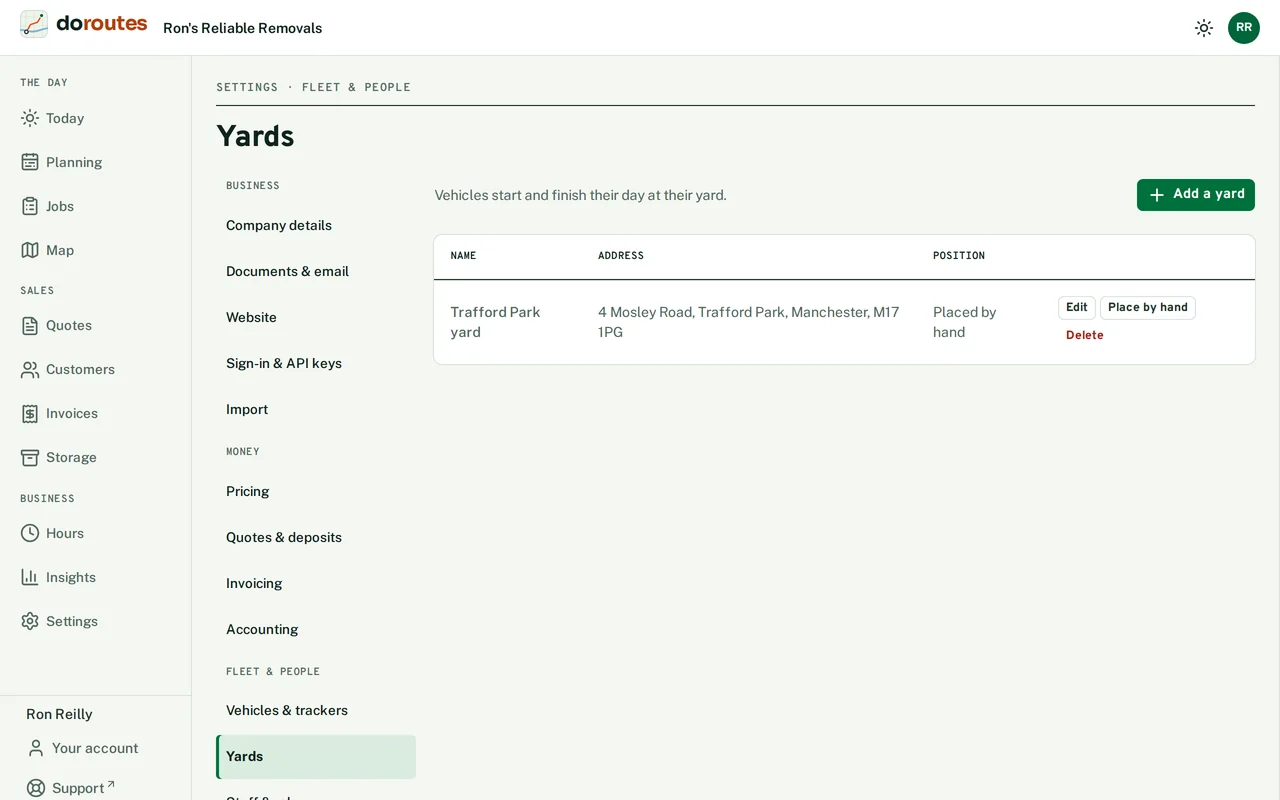
Vehicles start and finish their day at their yard. Go to Settings → Yards and add each yard's address. DoRoutes finds it on the map; Check its position shows you the pin, and Place by hand moves it if it's off.
If you take waste, add the tips you use as disposal sites on the same page, with their gate fee per load, opening days and the waste each one takes. Find sites near your yards suggests sites to tick.
Vehicles
Go to Settings → Vehicles & trackers → Add a vehicle and choose a vehicle type to start from: a short or long wheelbase van, a 3.5 t Luton box van, a 7.5 t box lorry, an 18 t rigid lorry or a 44 t articulated lorry. Its typical figures are filled in; change them to match your vehicle, and choose its yard.
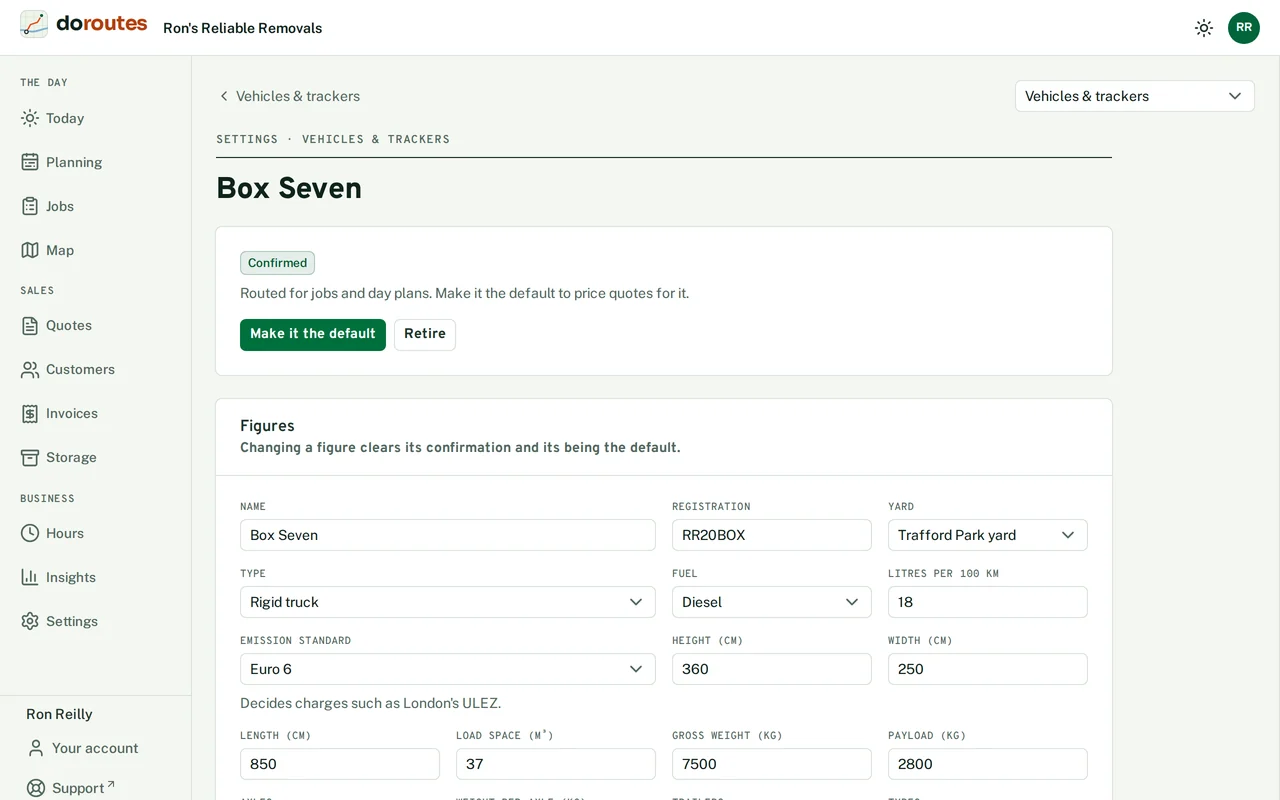
A new vehicle starts as Unconfirmed. On its page:
- Check its Figures: name, registration, yard, fuel and consumption, Emission standard (which decides charges such as London's ULEZ), size and weights, and when its MOT and service are due.
- Confirm these figures. Quotes and day plans use a vehicle only once it is confirmed. Changing a figure later clears the confirmation.
- Make it the default for the vehicle quotes are priced for. Until you do, quotes are priced for a generic 3.5 t Luton.
- Give it a Usual driver. Day plans give the vehicle to its usual driver on the days they are available.
- Set its Working hours, UK time. A day left unticked is a day off for the vehicle.
Retire vehicle when it leaves the fleet: it is no longer quoted for, planned or assigned.
Office staff
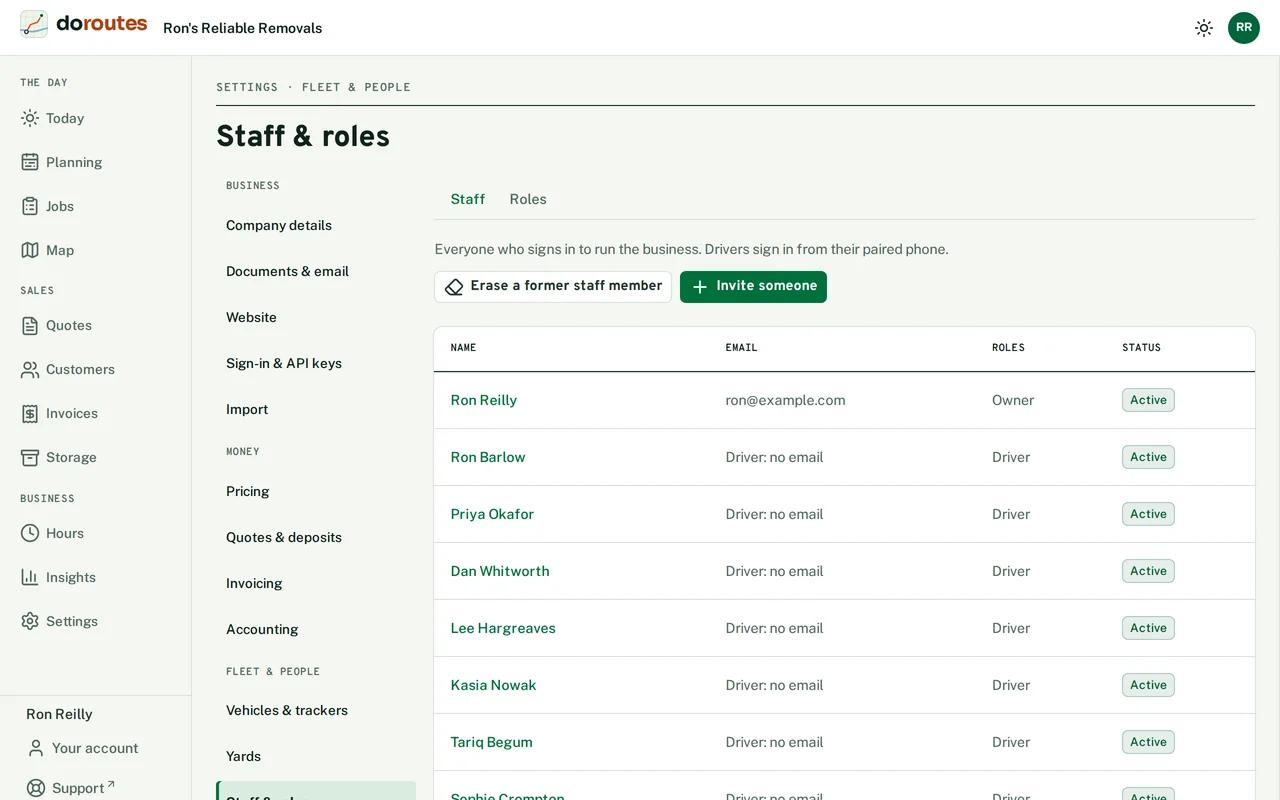
Staff are everyone who signs in to run the business. Go to Settings → Staff & roles → Invite someone; they get an email with a link to set a password and an authenticator app.
On a staff member's page you can change their details and Roles, record Days off (weekdays they never work, so day plans won't give them a vehicle) and Time away such as holidays and sickness. Remove from staff stops them signing in and unpairs their phone.
Roles
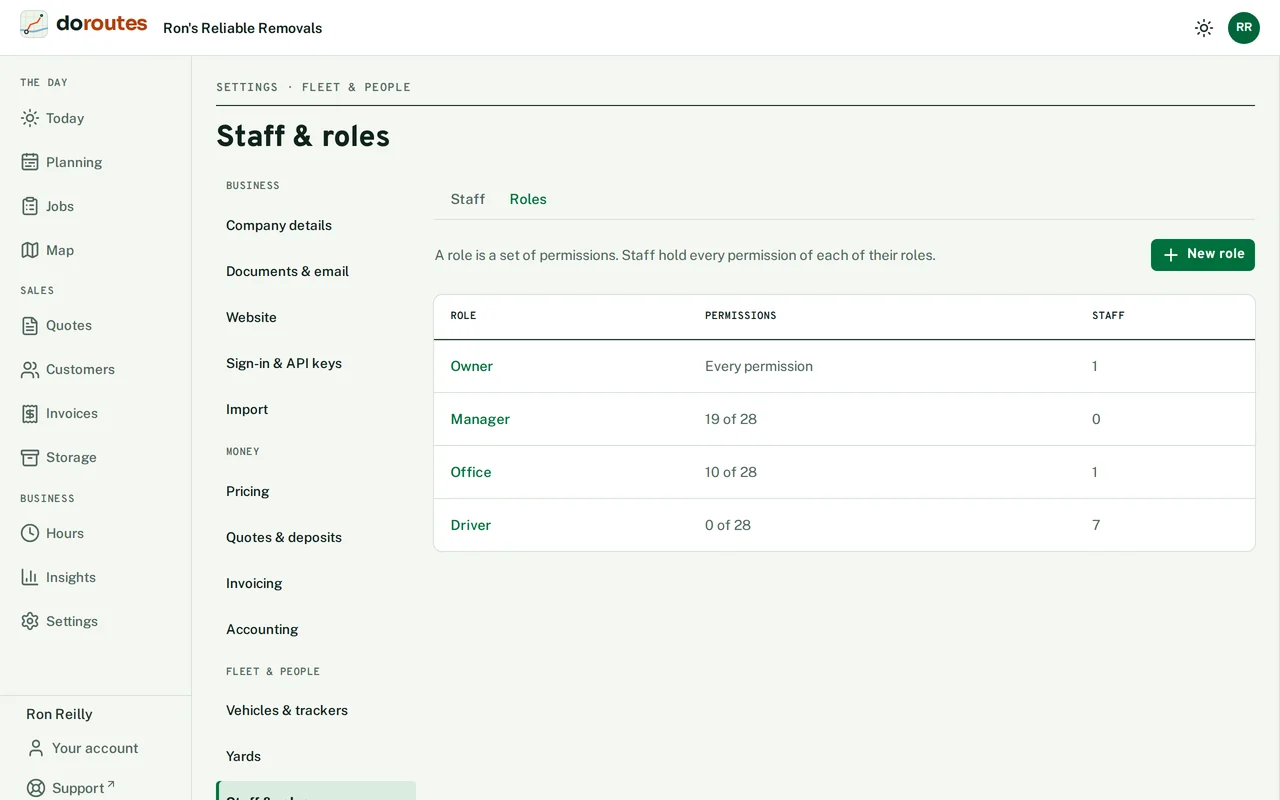
A role is a set of permissions, and staff hold every permission of each of their roles. To make one, choose New role, name it, then tick its permissions. The Owner role holds every permission and can't be changed or deleted; only an Owner can give or take away the Owner role.
Drivers
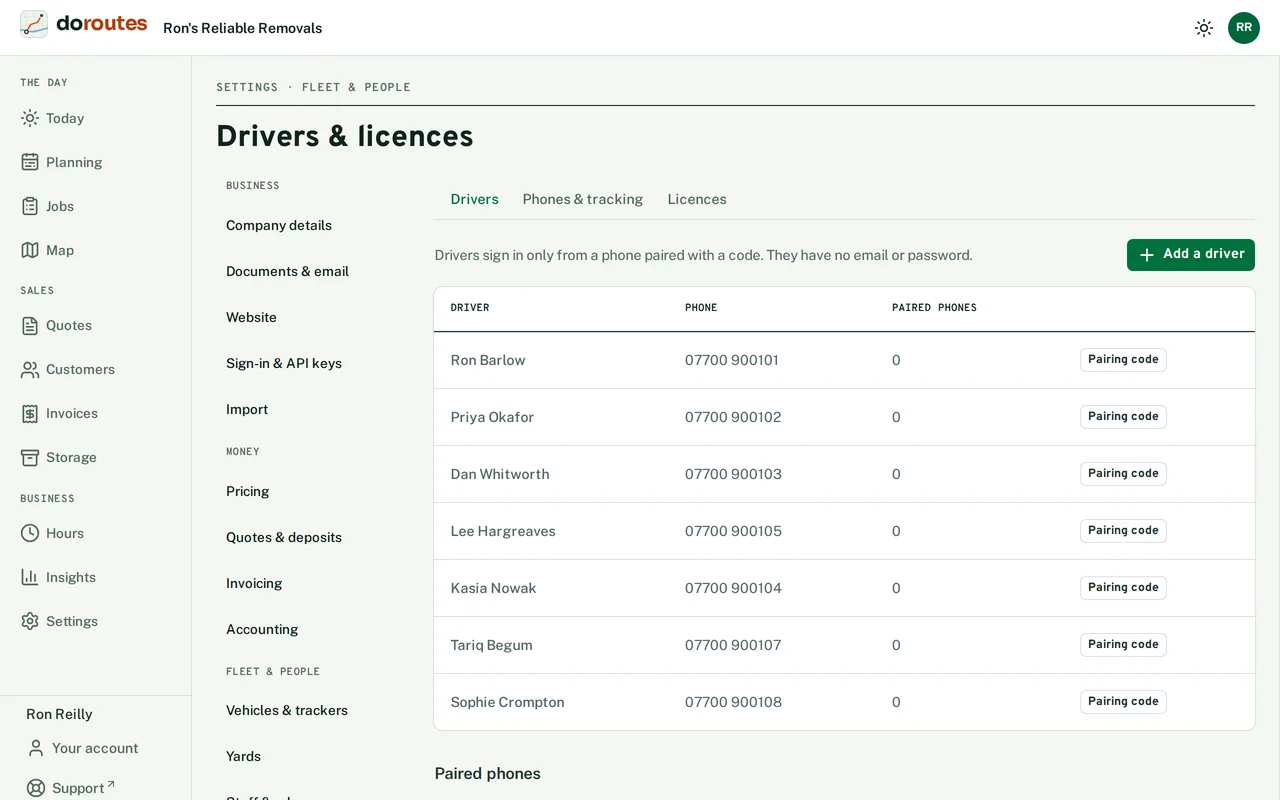
Drivers have no email or password: they sign in only from a phone paired with a code. Go to Settings → Drivers & licences → Add a driver.
When you add a driver, DoRoutes shows a Pairing code. The driver scans it with the DoRoutes Driver app, or pastes its link into the app. A code works once.
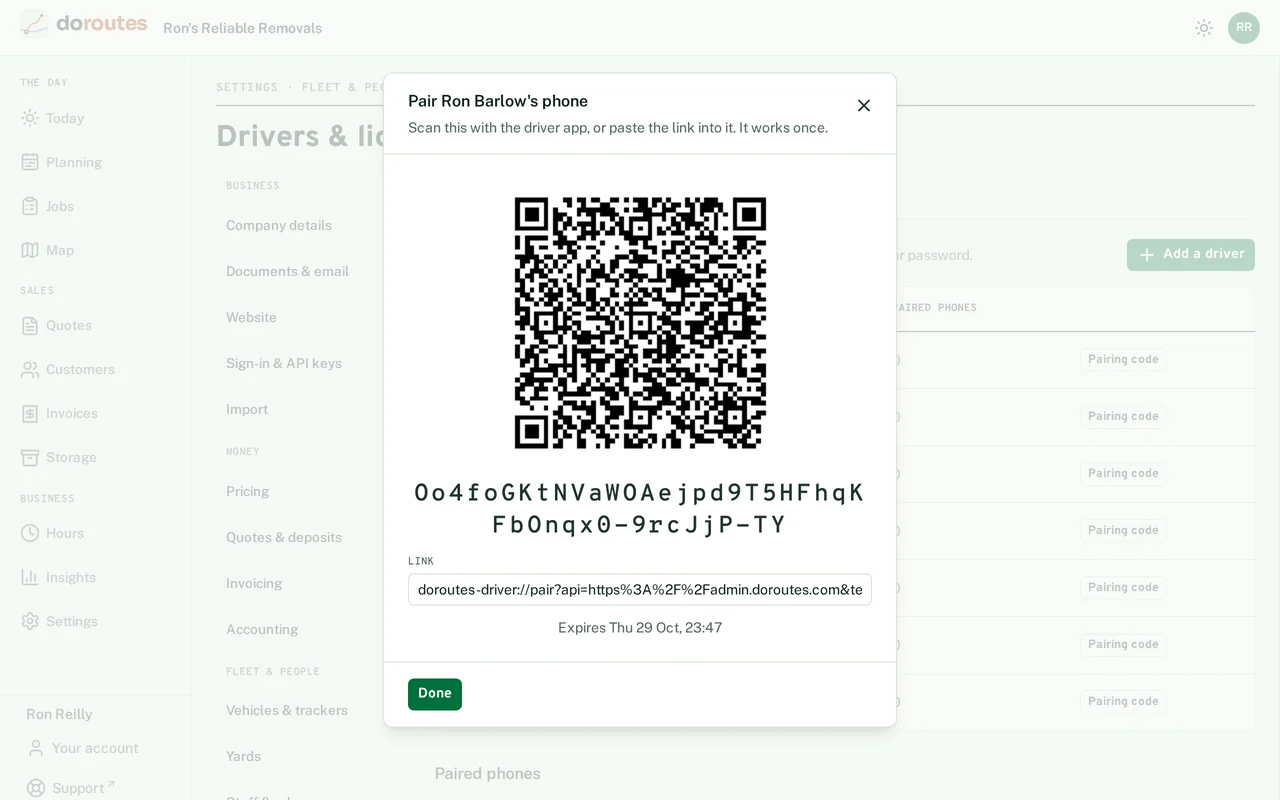
Paired phones lists each driver's phone. Unpair a phone that's lost or replaced, and add a new code for the new one.
The driver app shows what drivers see.