Day planning
How the nightly plan is made, and how you change and approve it.
The nightly plan
Each evening, at the time set in Plan tomorrow at (Settings → Planning & working days), DoRoutes plans the next day. Every job gets a vehicle and a place in that vehicle's run, and every vehicle is routed by its real size and weight.
The plan keeps to each vehicle's working hours and each job's arrival window. It puts in the breaks the drivers' hours rules need: GB domestic rules for vans, and the assimilated rules for larger vehicles. And it keeps down whichever you chose in Plans make smallest: time, fuel, cost or distance.
Vehicles go to their usual drivers on the days those drivers are available, and a job pinned to a vehicle stays on it. If a night's plan can't be made, DoRoutes tells your planners.
A customer's deliveries on the same day to the same address, whose arrival windows overlap, are made together: one stop on one run, with their time on site and their loads added up, and the stop's window where theirs overlap. They go on separate runs only when no one vehicle can carry them all. On Planning, the stop shows once, on the timeline and the map, listing its jobs.
Checking a plan
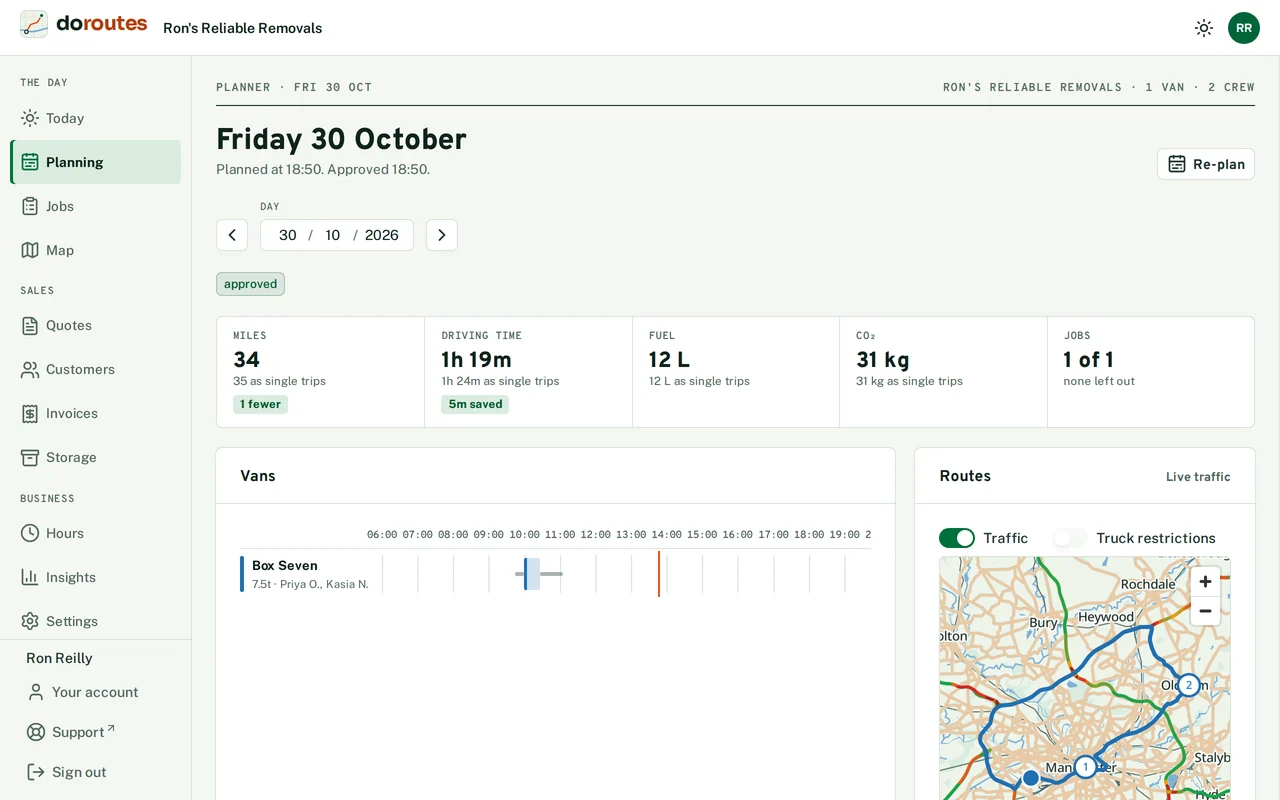
Planning shows one day at a time, and the arrows beside the date move to the day before and the day after. Under the date, a line says when the day was planned, overnight or by someone in the office, and when it was approved. When the day was planned again, it says who asked and why: "Re-planned 06:42 after job 7 was added", or "Re-planned 12:40 by Sam after job 7 moved to Luton 2".
A new plan arrives as a proposal:
- Five figures sit along the top: Miles, Driving time, Fuel, CO₂ and Jobs. Each says how much the plan saves against doing every job as its own trip from the yard, and Jobs says how many the plan left out.
- Vans shows each van's run on a timeline, with its weight and crew under its name. Each job is one block, named after its towns, such as "Eccles → Swinton". When the plan has a van carry two jobs at once, collecting both before delivering either, they share a block. A break shows its length. Click a block to open the job, or the van's name to open the van.
- Routes draws the runs on the map, each in its van's colour, with a key below. Traffic and Truck restrictions add live traffic and roads trucks can't use to the map.
- Changes against the approved plan appears when the day already has an approved plan.
- Jobs left out lists any job no vehicle could take, and Vehicles not used any vehicle the plan didn't need.
- Warnings sit under the timeline, and as an icon beside the van's name. A van gets one when its driving comes within 30 minutes of the drivers' hours limit before a break, such as "5h 05m driving by 12:35, break due by 13:00", and a delivery gets one when it arrives within 15 minutes of the end of its window.
While HERE, the routing service, works out a plan, the page says so and updates when it's ready.
Changing a plan
To move a job to another van, drag its block onto that van's row. While you drag, the vans the plan didn't use and Any van appear below the runs. You can also open the job and choose a van under Move to van, then Move.
A move makes a new plan with the job on that van, and HERE plans the rest of the day around it. Nothing changes on the job until you approve the new plan, and rejecting it leaves the job where it was. Any van lets the plan choose the van, and takes away any pin the job had. A van with no driver that day asks you which of the free drivers drives it, and a van that can't work that day says why. Jobs that have started on today's plan stay where they are.
To keep a job on the same vehicle every time the day is planned, pin it on the job's own page.
Open a vehicle on the plan to set its Driver for the day, or go Back to the usual driver. Once you change a driver, DoRoutes asks you to Re-plan to see the change in a new proposal.
Approving
Approve and send to drivers makes the proposal the day's plan. Each planned job gets its run's vehicle and driver, DoRoutes plans each run's route through its stops, and the drivers' phones show their runs. Reject turns a proposal down, and the day's approved plan stands.
When a job or a driver changes after a day is approved, DoRoutes plans that day again and tells the planners, so you can approve the new plan. Drivers whose run changes see Your run has changed on their phones.