Quotes
Set up the work you take and your prices, then quote by phone or let customers ask on your website.
Job types
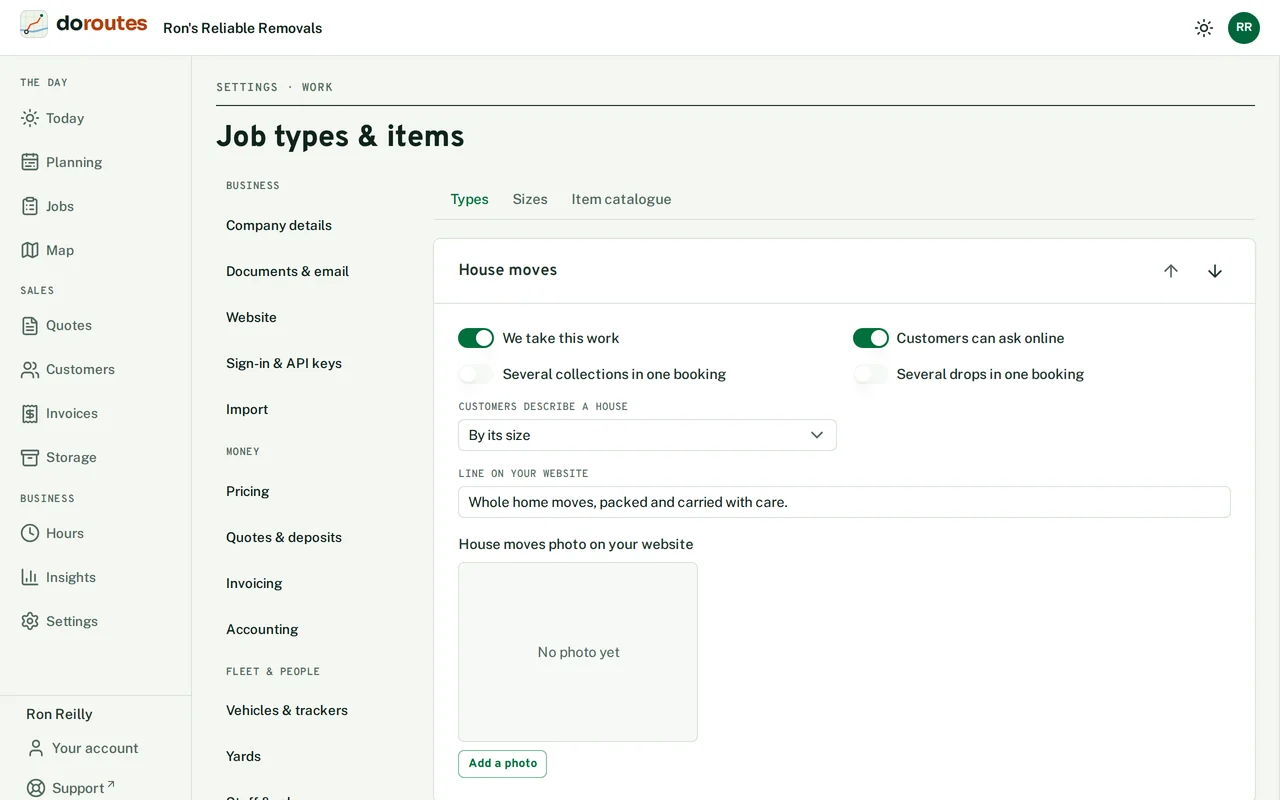
Start in Settings → Job types & items and tick the work you take: house moves, office moves, single or multiple items, courier parcels, waste and delivery. For each, choose whether Customers can ask online from your website, whether one booking can have several collections or several drops, and the line shown for it on your website. Job types with sizes, such as house moves and waste loads, list their sizes here.
Pricing
Settings → Pricing sets how each job type is priced. Change what you need, try a quote, then choose Save pricing.
Each tab covers one part of the price:
- On the first tab, each job type is priced either by time and distance from your vehicle rates, or at a fixed price per size. This is also where you set the range customers see above the price, minimum hours, rounding, a booking fee and the margin you want a warning below.
- Vehicles holds each vehicle's rate: an hour with its driver, an hour for each extra person, and per mile.
- Sizes holds the fixed prices, the miles they cover, and the weights DoRoutes uses for loads.
- Extras lists packing, materials, storage and anything else you add, in the order customers see them. Hourly extras are for staff only.
- Surcharges add for driving from the yard, a job too big for one vehicle, large items that need more crew, floors without a lift, and heavy or fragile items.
- Dates adds a percentage for early and late starts and on Peak dates (a negative number gives a discount).
- Road charges covers congestion charges, clean air zones, tolls and crossings on the quote's route.
Try a quote prices a job with the settings as they are on screen, before you save them. Nothing is stored.
A quote by phone
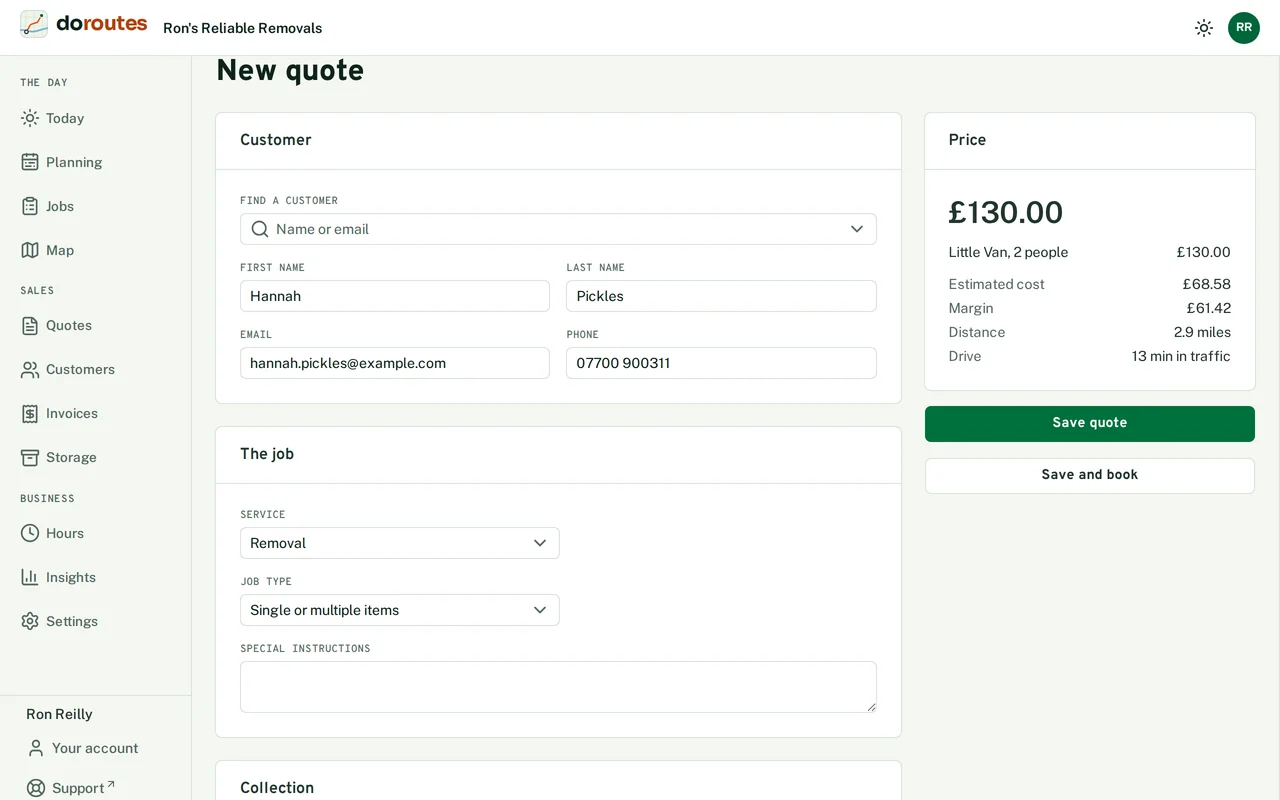
Go to Quotes → New quote.
- Find the customer, or add them.
- Choose the Job type and fill in its details, such as the rooms in a house and how full each is, or the items.
- Add the Collection and Drop. For a booking with several, use Add another collection or Add another drop.
- Choose the Day, and the time to Arrive at where the job type has one.
- Leave Crew, vehicle and extras empty for DoRoutes to work them out, or set them yourself.
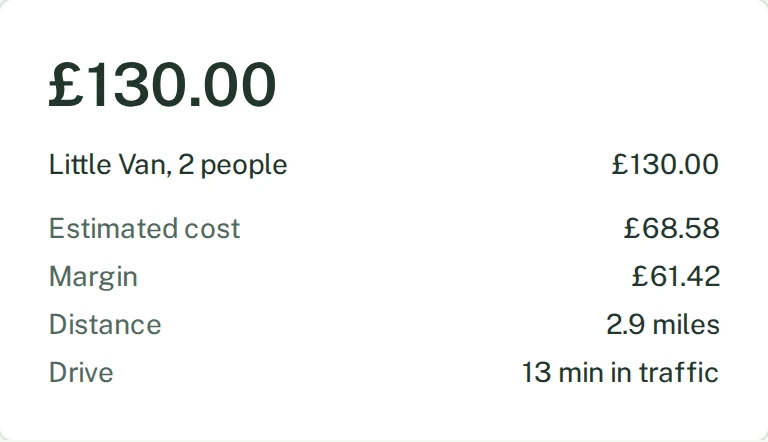
The route and price appear as you type. Save quote keeps it, and Save and book books the job at once.
Quotes from your website
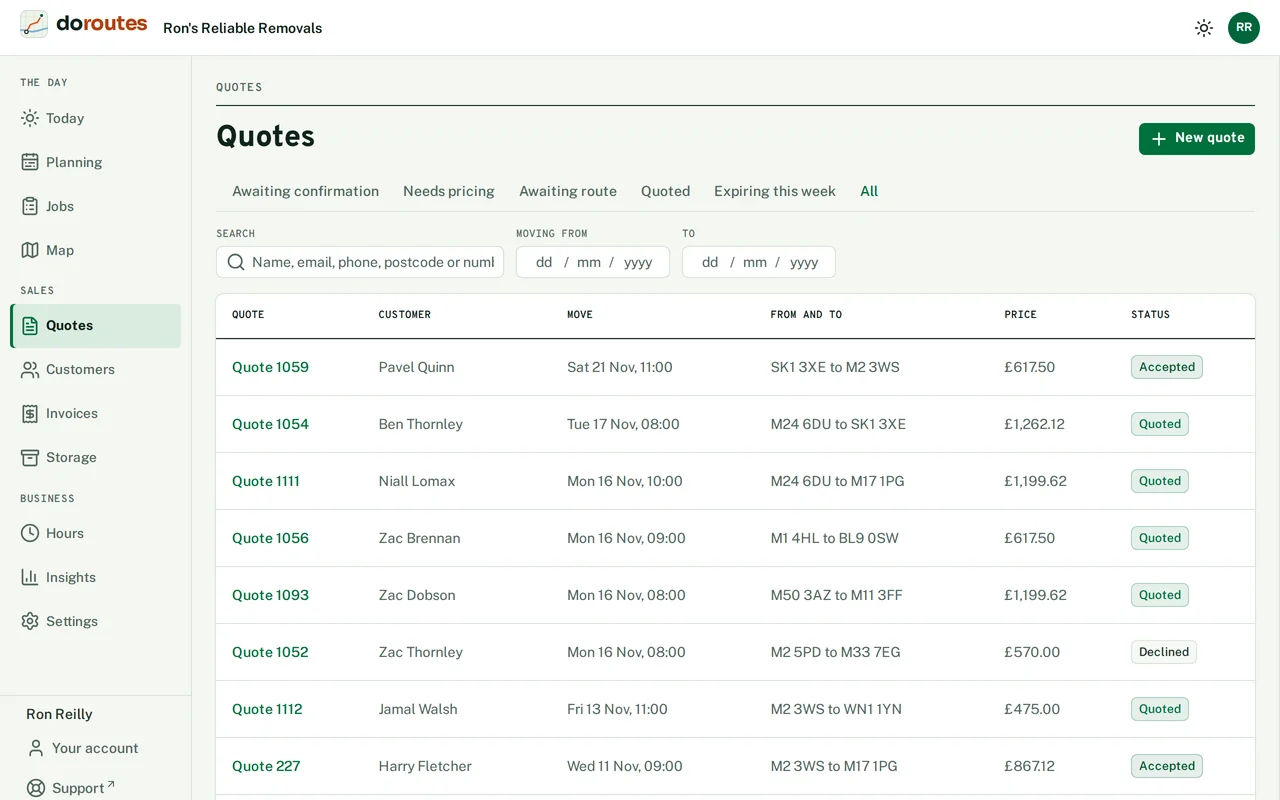
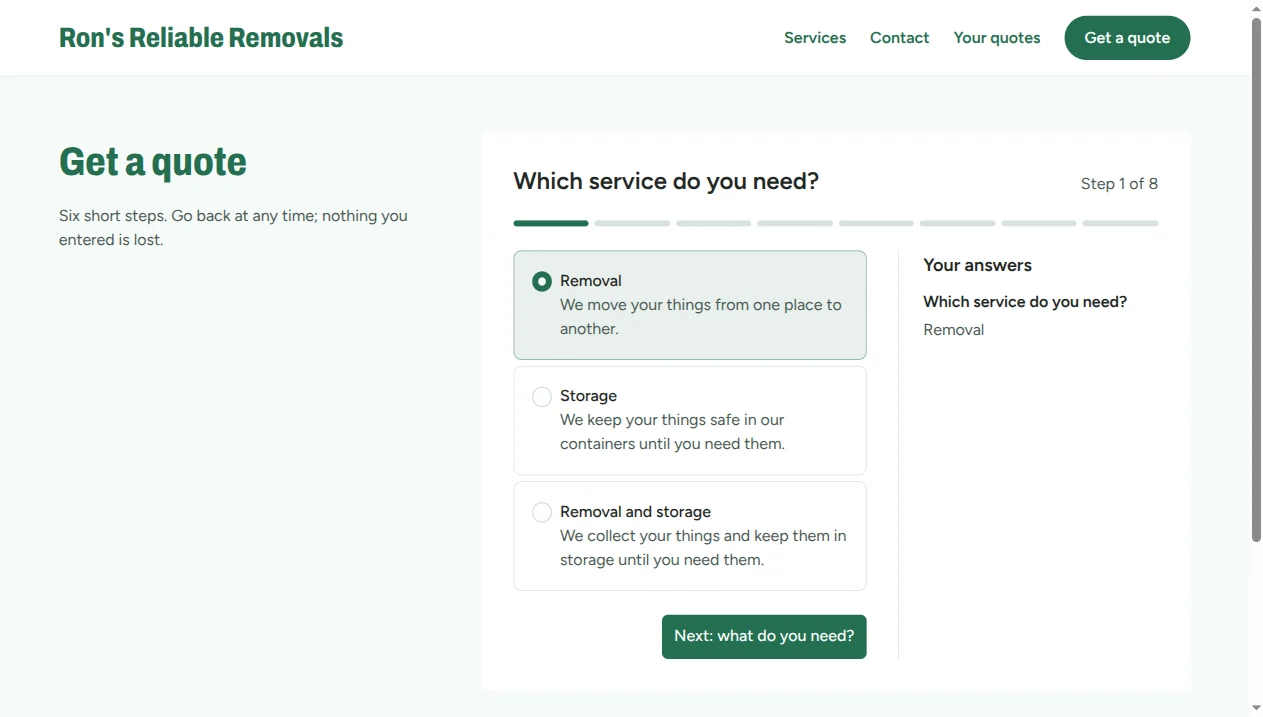
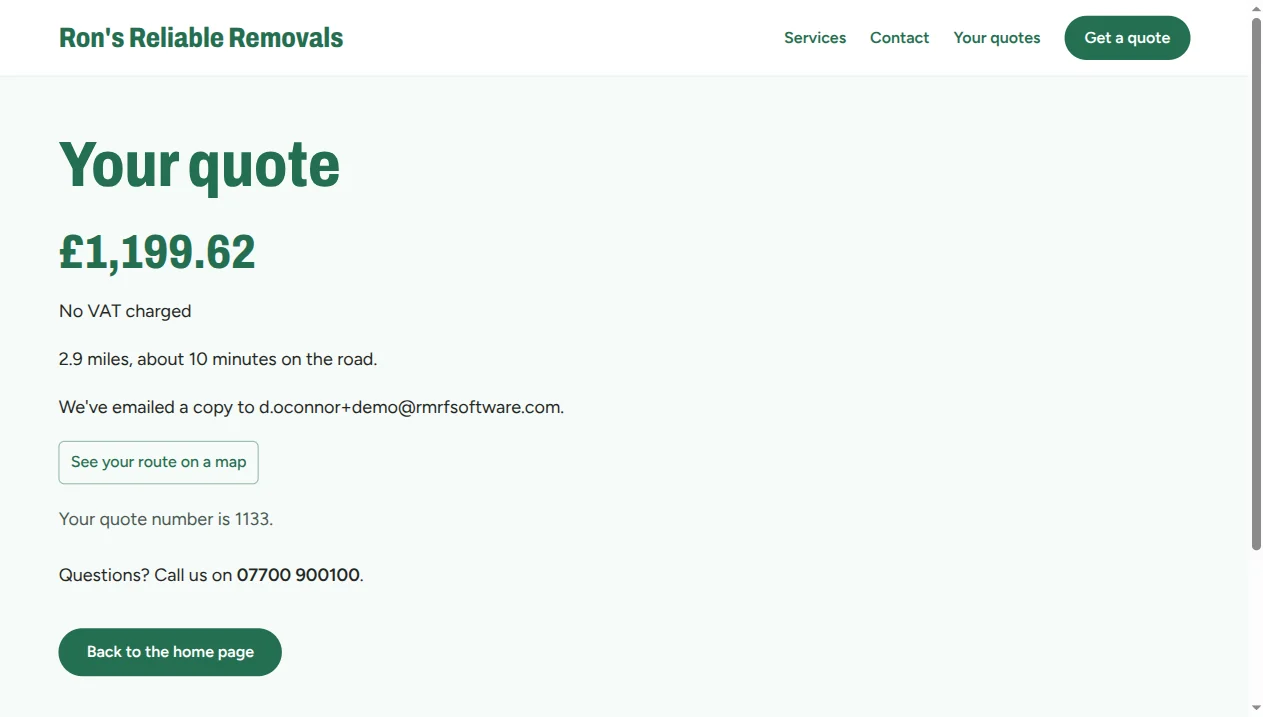
Customers can ask for a quote on your website for the job types you allow. DoRoutes prices it and emails the customer their price, with the quote as a PDF. A quote it can't price, such as one that needs a look at the job first, waits on Quotes for you to price by hand.
Accepting and booking
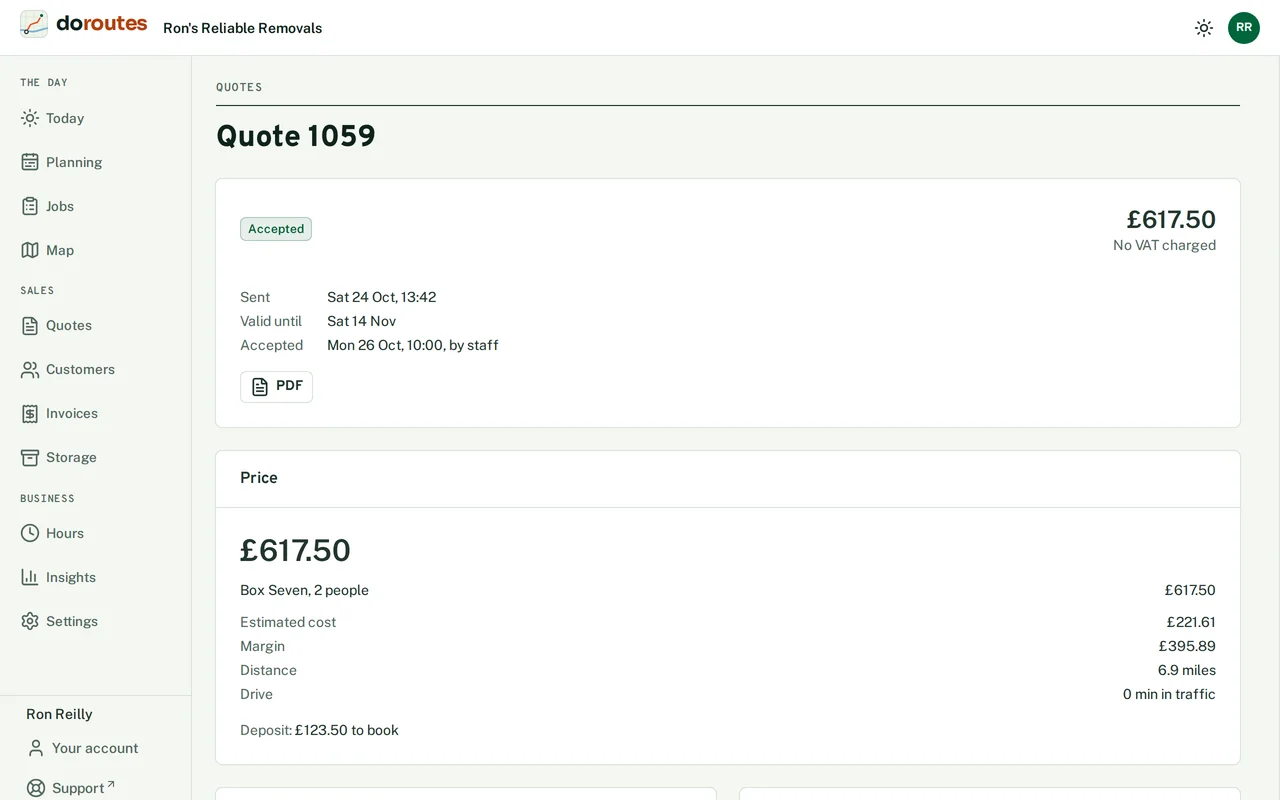
The customer accepts online, and pays their deposit there once a payment provider is connected. In Settings → Quotes & deposits you choose whether that books the job at once or asks you to confirm. A quote waiting for you shows Confirm booking and Decline. If you give a reason for declining, the customer sees it.
On a quote's page you can also:
- Edit quote and see the new price before you save.
- Set your own price (with a reason), or go back with Use the worked-out price.
- Change its deposit, or go back with Use the business's deposit rule. A deposit of £0 asks for none.
- Book job when the customer paid the deposit another way, recording the date, method and reference.
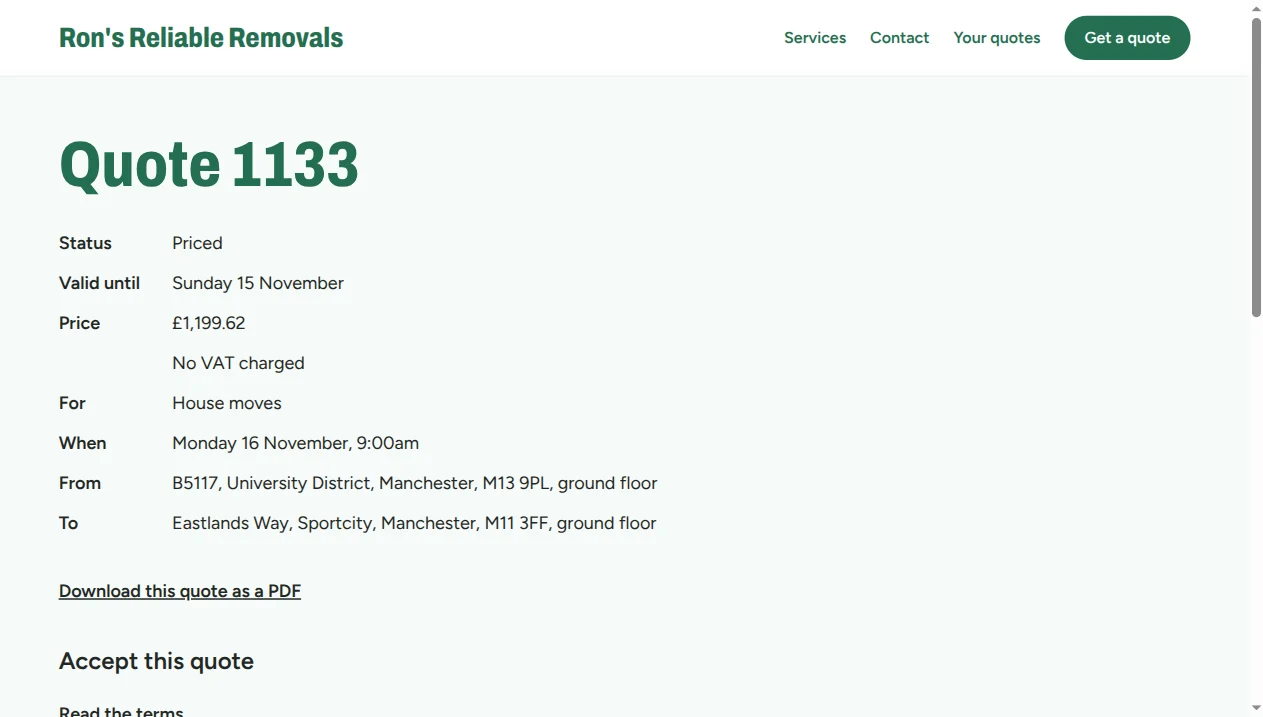
- Download the PDF.
A quote can be accepted until the days set in Quotes are valid for, and never after its move date.
When a customer comes back to their quote
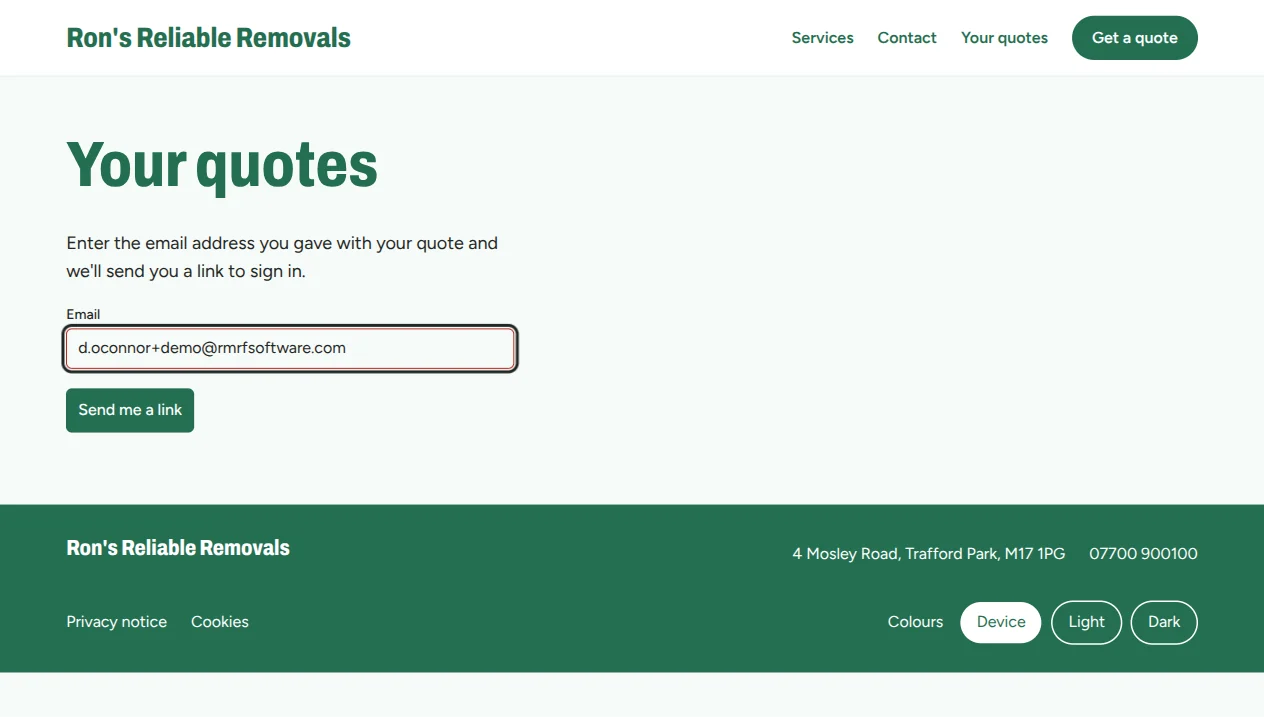
The quote email has a link to the quote on your booking site. Customers can also choose Your quotes from the site's menu at any time.
There's no password to remember. The customer types the email address they booked with, and DoRoutes emails them a sign-in link. It works once and lasts 15 minutes. The page says the same thing whether or not that address has a quote with you, so nobody can use it to find out who your customers are.
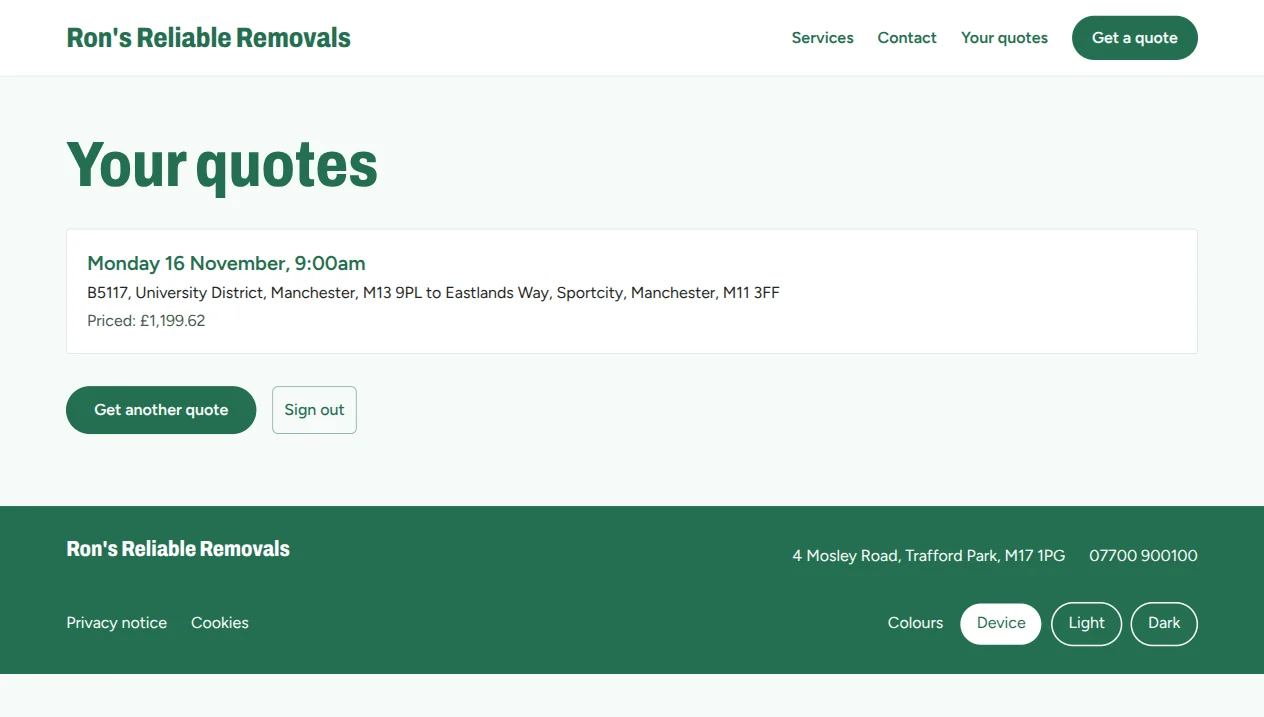
Once signed in, a customer sees each of their quotes. On a quote they can accept it, download it as a PDF, and see the route on a map. They stay signed in on that browser for as long as you choose under Settings → Sign-in & API keys (1 to 30 days), until they choose Sign out.
It works the same on the ready-made website, on your own website with the booking snippet, and with the WordPress plugin.