Jobs and the diary
Booked jobs, each vehicle's day on the schedule, customer records and the crew's hours.
Jobs
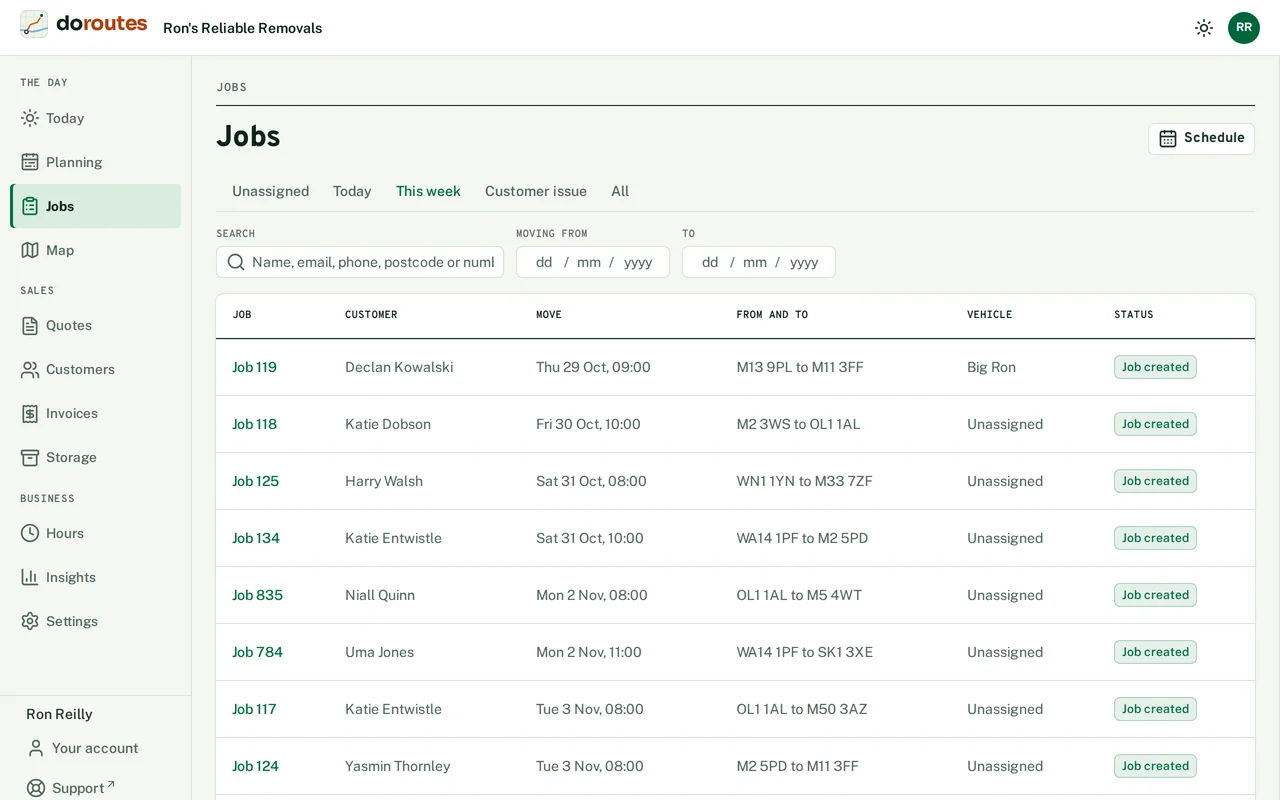
Jobs lists every booked job. Search by name, email, phone, postcode or number, and narrow it by moving day.
A job moves through its statuses as the work happens: job created, collection arranged, delivery arranged, delivered and completed. Along the way it may also be awaiting our response, awaiting customer response, customer issue, cancelled or refunded. To move it on by hand, use Change status on the job's page.
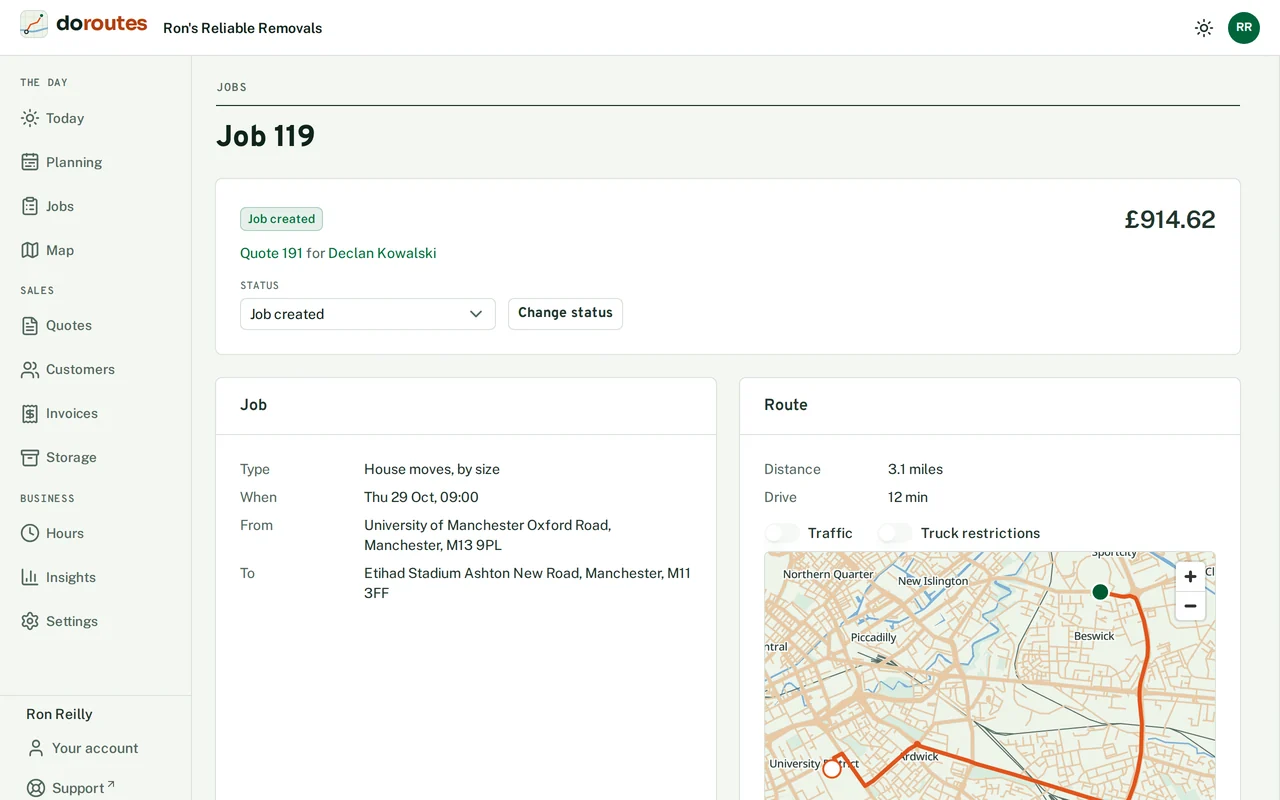
A job's page
Each job's page has everything about the job in one place:
- Vehicle, driver and crew shows the vehicle, its driver and the People needed, driver included. Tick Keep on this vehicle when the day is planned to pin the job to that vehicle.
- Load is what's being carried, including any Hazardous goods.
- Loading and unloading holds the minutes each takes. Leave them empty and DoRoutes uses its estimate.
- Customer's signature says whether the customer must sign on delivery. It follows your business's setting unless you pick one for this job: the customer must sign, the customer signs or the driver says why not, or a signature is optional.
- Route gives the distance and drive time for the job's vehicle.
- From the driver shows the steps, issues, clock times and photos the driver recorded, timed by the phone.
- Tracking lists the cargo tags on the job (see Live GPS and tracking).
- The deposit and the balance still due.
The schedule
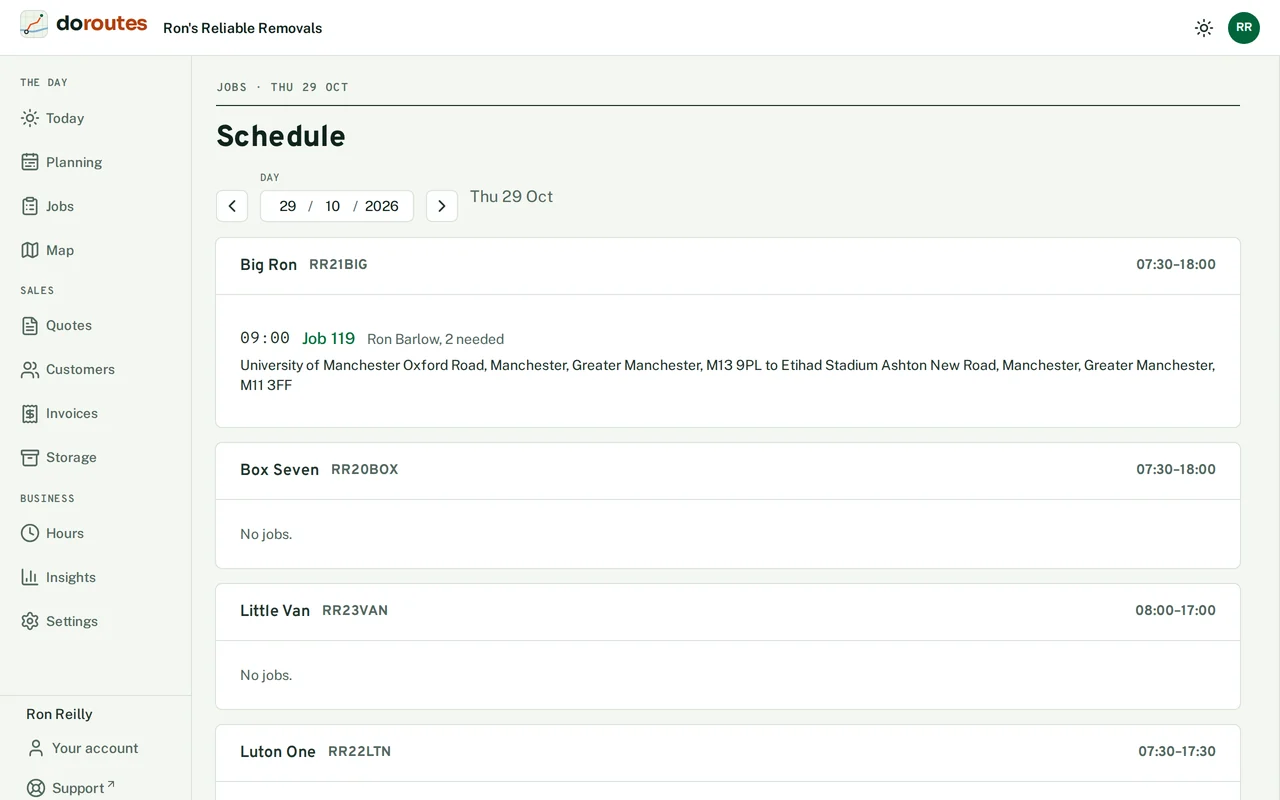
Jobs → Schedule shows one day at a time: each vehicle with its jobs in order, and the jobs with No vehicle yet. Day before and Day after move through the diary. Pinned jobs are marked, and a day you don't work says so.
Customers
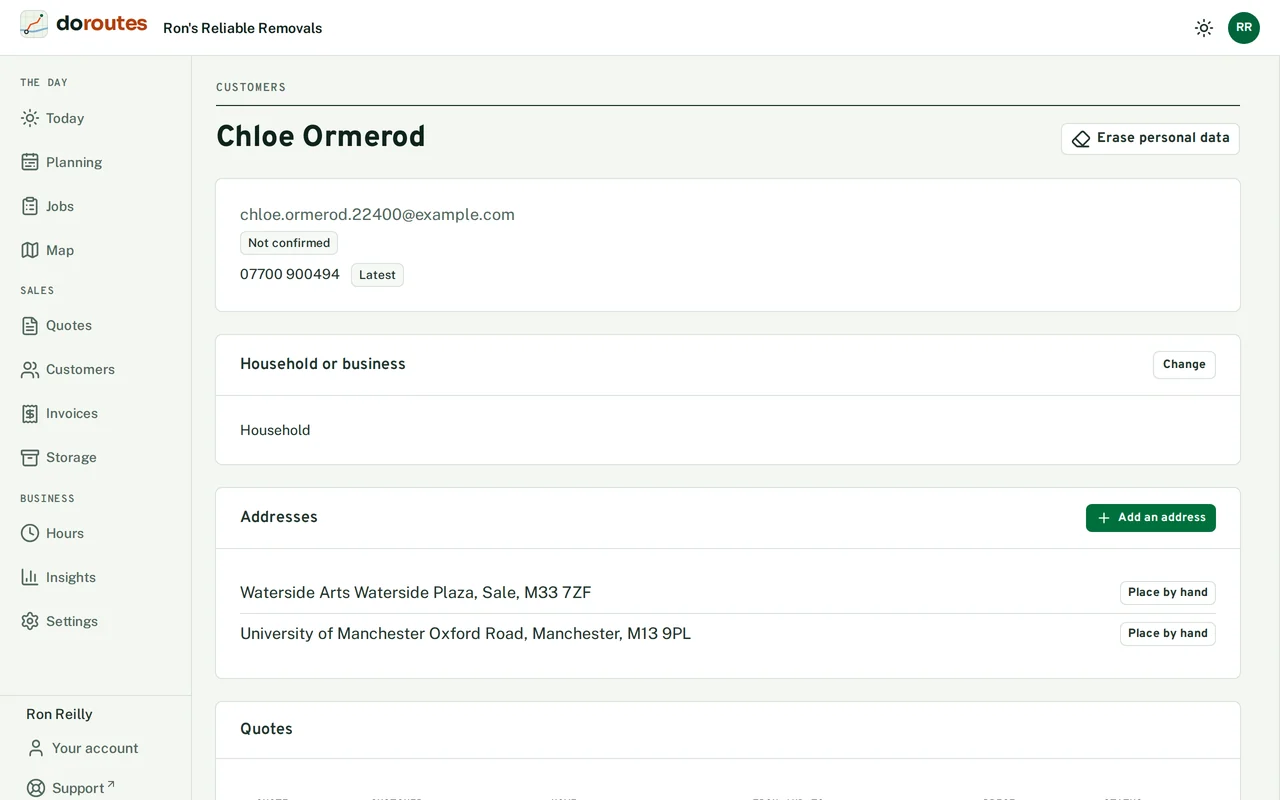
Customers holds everyone who has asked for a quote or booked. A customer's page lists their Addresses, Quotes and Jobs. You can also Add a customer by hand; if you already have someone with that email, DoRoutes updates their record instead.
Hours
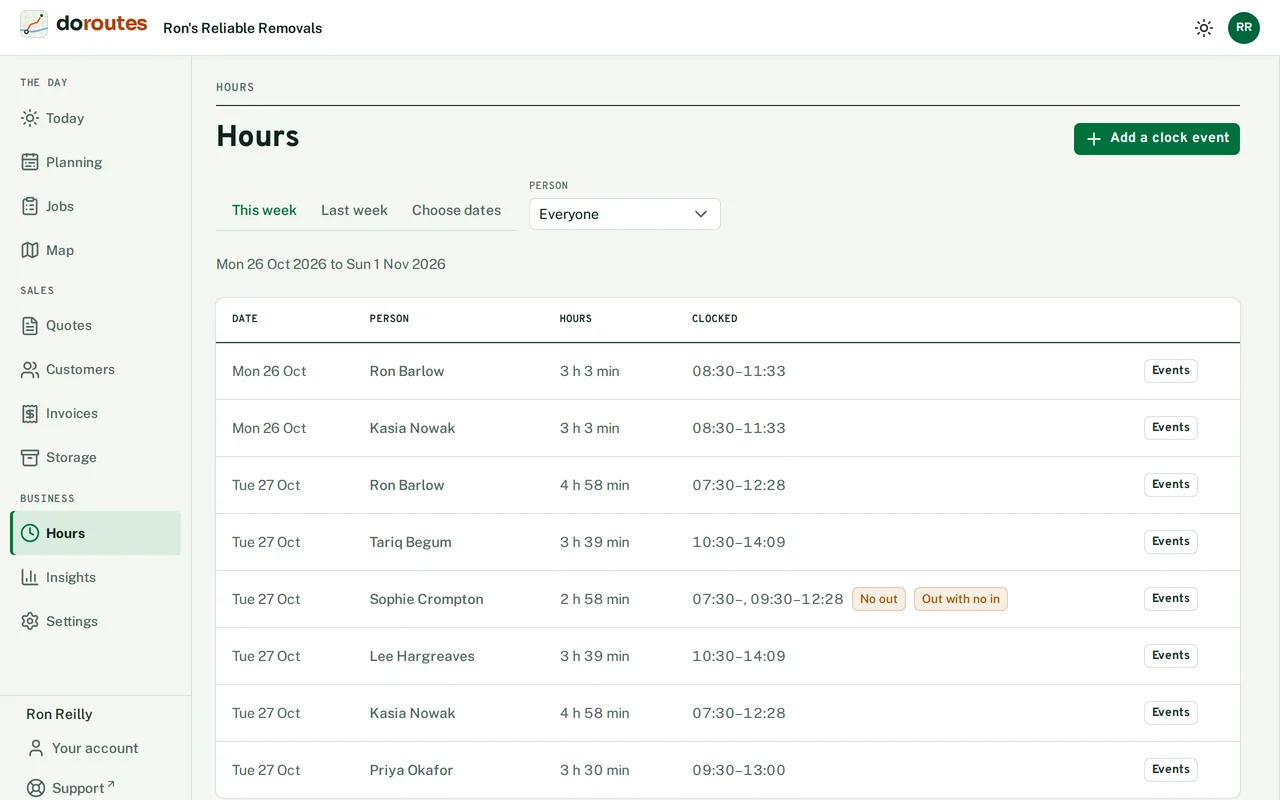
Hours shows when each person clocked in and out on the days you choose, and their totals. Each in counts until the next out, and a shift belongs to the day it started.
Drivers clock in and out on their phones. If one forgets, choose Add a clock event, then the person, the job and the time, with a note saying why. Fix corrects a wrong one, with a reason. Void takes one out of the totals; it stays on the record, marked as void.