Importing records
Bring your customers, booked jobs and past jobs from another system with a CSV file.
Go to Settings → Import to bring in customers, booked jobs and past jobs from a spreadsheet or another system. DoRoutes checks every row before it saves anything, and never emails your customers about an import.
Preparing the file
Download the template to see the columns DoRoutes reads. Your file must be a CSV of up to 5 MB and 5,000 rows, with a heading on each column.
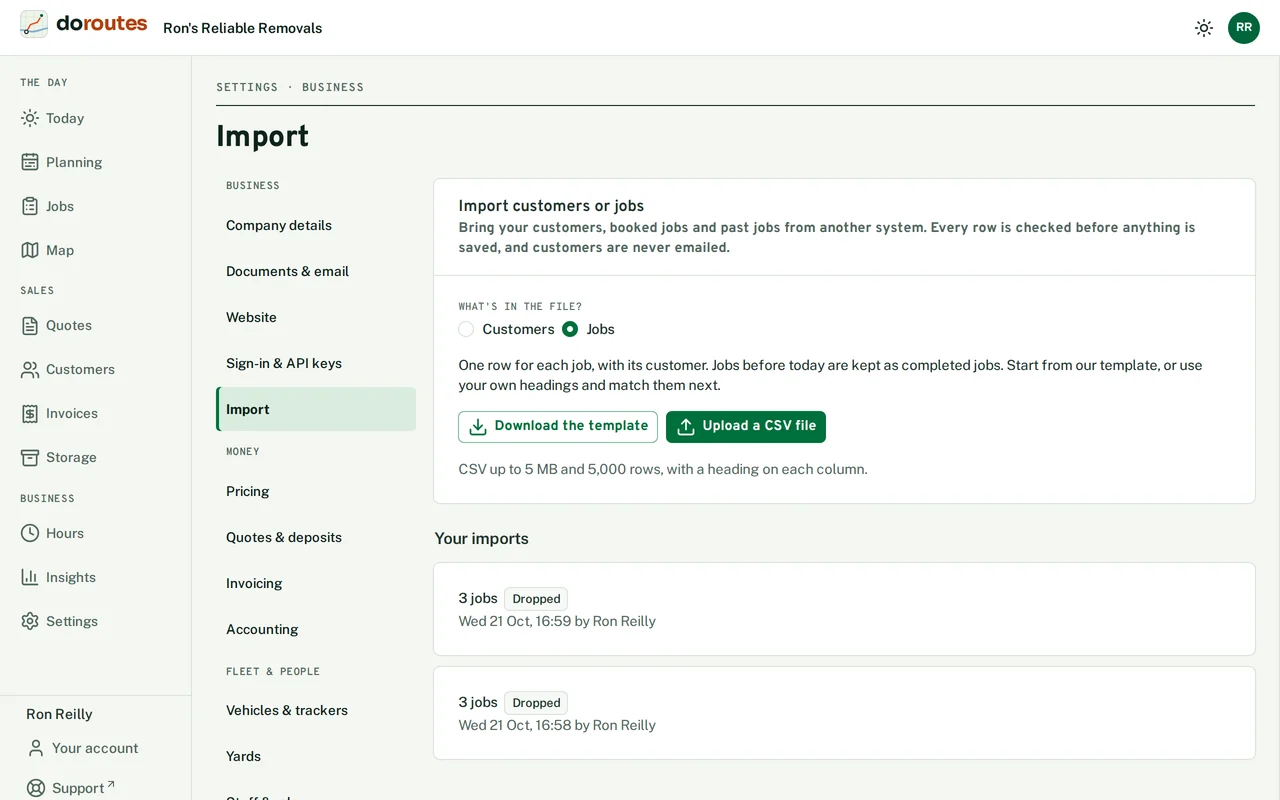
Importing
- Choose What's in the file? and Upload a CSV file.
- Match your columns to DoRoutes' fields, and say how dates in the file are written. Every date must be written the same way.
- Check the rows. Any row with a problem is listed; Download problem rows to fix them in your spreadsheet.
- Start the import. It runs in the background, so you can leave the page. DoRoutes emails you and shows a notice when it's done.
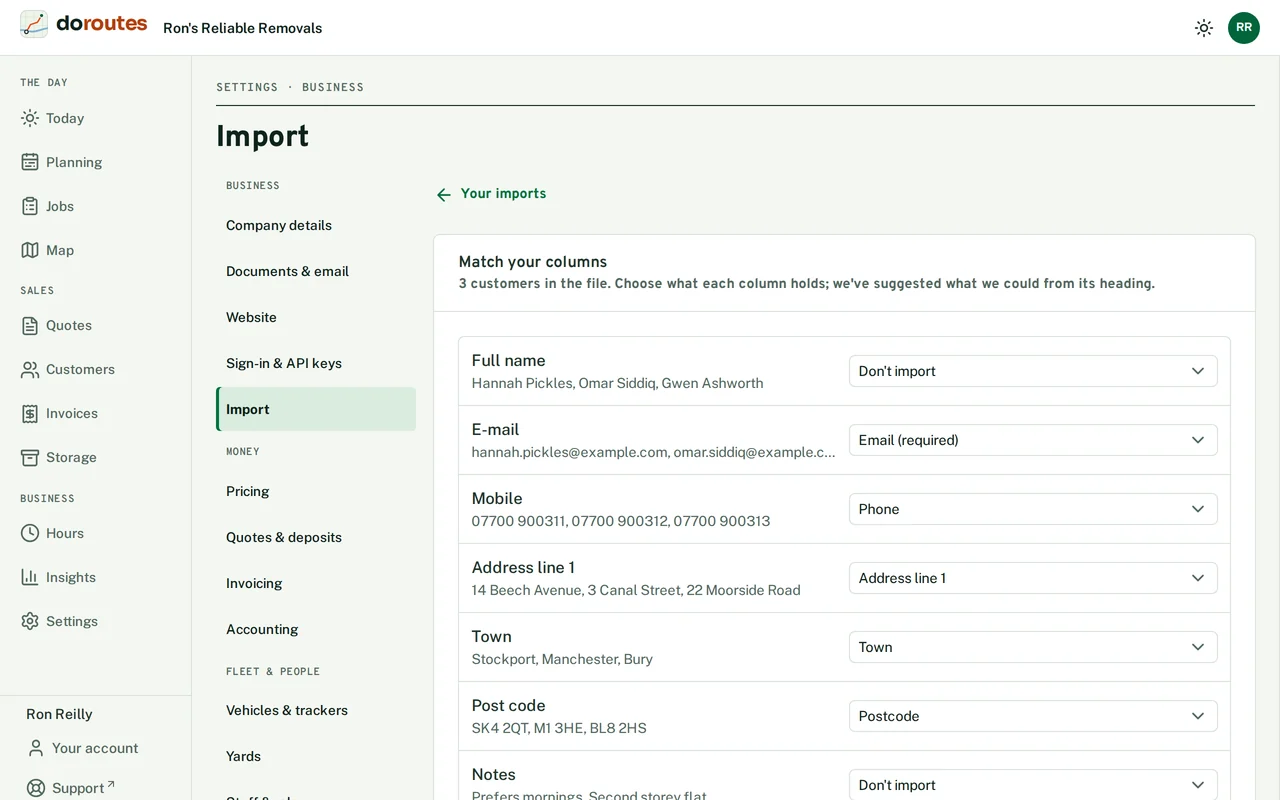
If something is wrong, Drop this import before it starts. Nothing in it is saved, and you can upload the file again.
Undoing an import
Your imports lists every import. Undo removes the customers, quotes, jobs and deposit invoices an import made, unless they have been used or changed since. Those are kept and listed, so you can deal with them by hand.
If an import stops part way, you can Start again or Undo it.