Getting started
Sign in for the first time, then work through the checklist on Today before your first day plan.
The office uses DoRoutes in a web browser, and your drivers use the DoRoutes Driver app on their phones. Your firm has its own address: admin.doroutes.com/<your firm>.
Your first sign-in
Once your firm is set up, its owner gets an invitation by email.
- Open the link in the email and choose a password.
- Scan the code on screen with an authenticator app on your phone, such as Google Authenticator or Microsoft Authenticator, and type in the six-digit code it shows.
- Save the recovery codes DoRoutes shows you. Each one signs you in once if you lose your phone, and you only see them this once.
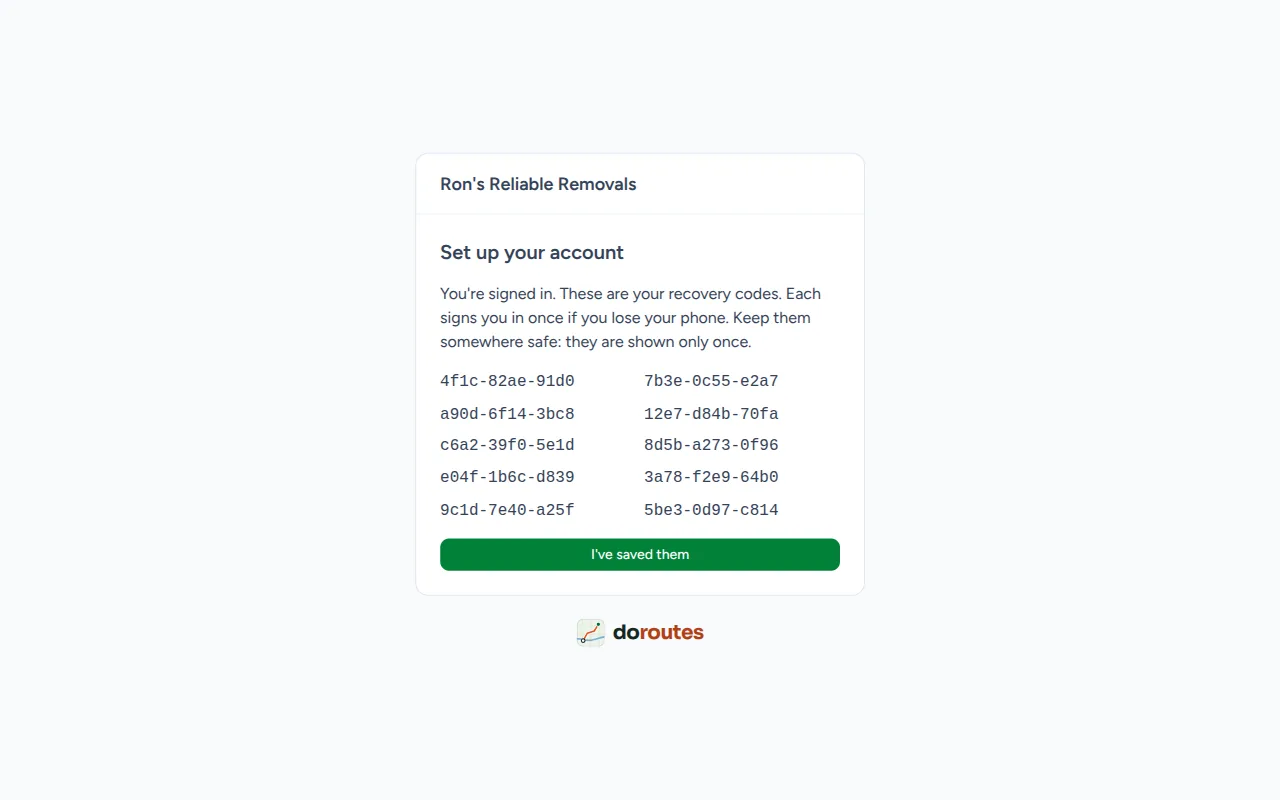
After that, you sign in with your email, your password and a code from the authenticator app. If you forget your password, Forgotten your password? on the sign-in page emails you a link to choose a new one.
Today
Today is the first page you see. Until you have planned your first day, it shows Get ready to plan, a checklist of what planning needs:
- Add your yard, where your vehicles start and finish the day.
- Add a vehicle and confirm its figures.
- Choose the vehicle quotes are priced for.
- Give each vehicle its usual driver and working hours.
- Invite your staff.
- Check your settings, covering working days, planning time and bank holidays.
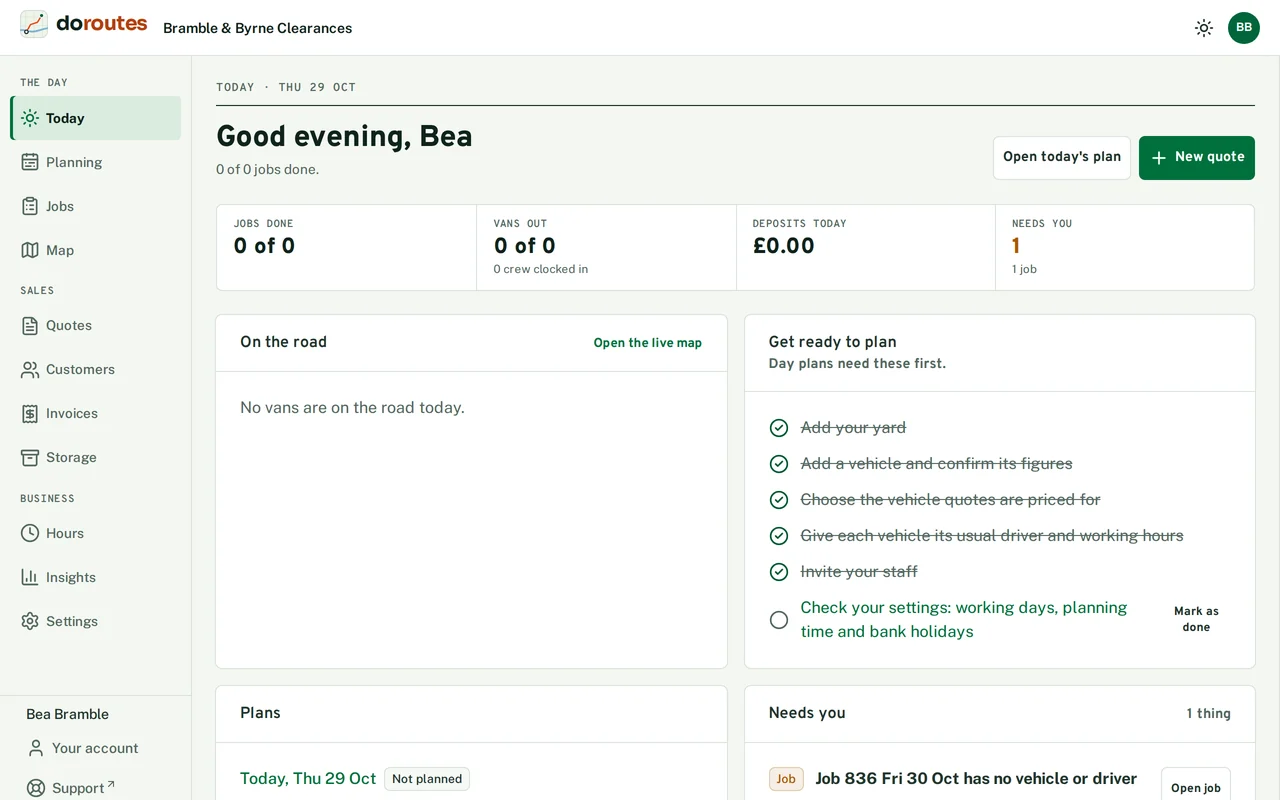
Each item links to the page where you do it, and ticks itself once it's done. If you work alone, or the settings already suit you, tick Invite your staff or Check your settings yourself with Mark as done.
Once you're planning, Today opens with a greeting and how many of the day's jobs are done. Along the top are four figures:
- Jobs done, and the time the next job finishes. A job booked for a day without a time counts on that day.
- Vans out: the planned vans that have sent a position today, and how many crew are clocked in.
- Deposits today, and how many were paid.
- Needs you: how many things are waiting, and of which kinds.
On the road lists each van out today: where it is now, its next stop and when it's due there, and its status, which is On plan, a number of minutes late, Break or Finished. A van counts as late once it's further behind its plan than Late after (minutes), in Settings → Planning & working days. Open the live map shows them on the map.
Plans shows today's and tomorrow's plans and where each stands. For today it lists each van with its driver, its number of jobs and when it's back at the yard.
Needs you lists what's waiting, late vans first:
- Late: a van behind its plan. Open job opens the job at its next stop.
- Quote: a quote DoRoutes couldn't price. Price it opens it.
- Issue: a job a customer has raised an issue on.
- Plan: a plan waiting for approval, a plan that's out of date, or a night the planner couldn't plan.
- Job: a job with no vehicle or driver.
- Payment: a deposit or balance due.
Open today's plan and New quote sit at the top of the page. You see only the figures, lists and buttons your roles allow.
Menus
The main menu holds the daily work: Today, Planning, Jobs, Quotes, Customers, Invoices, Storage, Map, Hours and Insights.
Below it, Settings holds what you set once and change now and then, from your vehicles, staff and prices to your website. Your firm and settings goes through it.
You see only the pages your roles allow. Vans and staff explains roles.
Your account
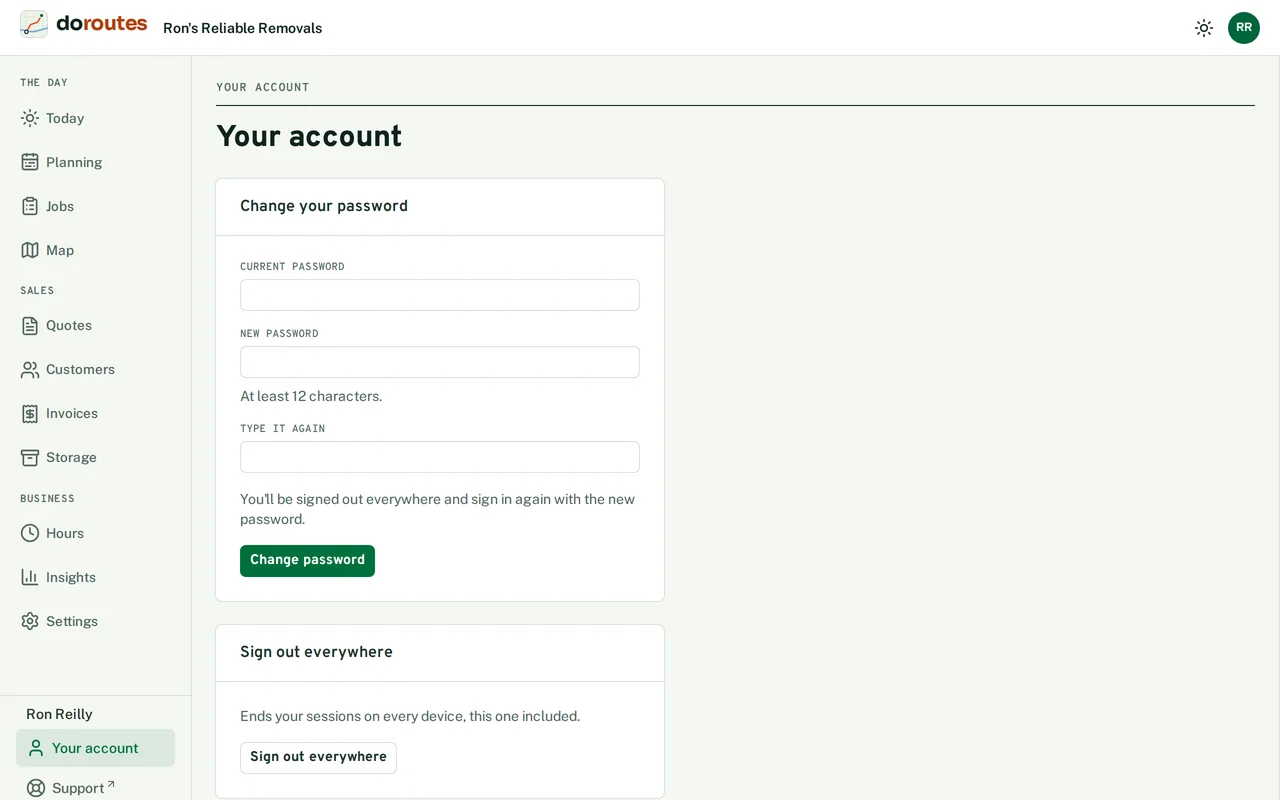
Under Your account you can change your password. Sign out everywhere ends your sessions on every device, including the one you're using.
Support, beside Your account at the foot of the menu, opens our support desk in a new tab, with DoRoutes chosen, so you can ask us for help or report a problem.